
How to Use Media Management?
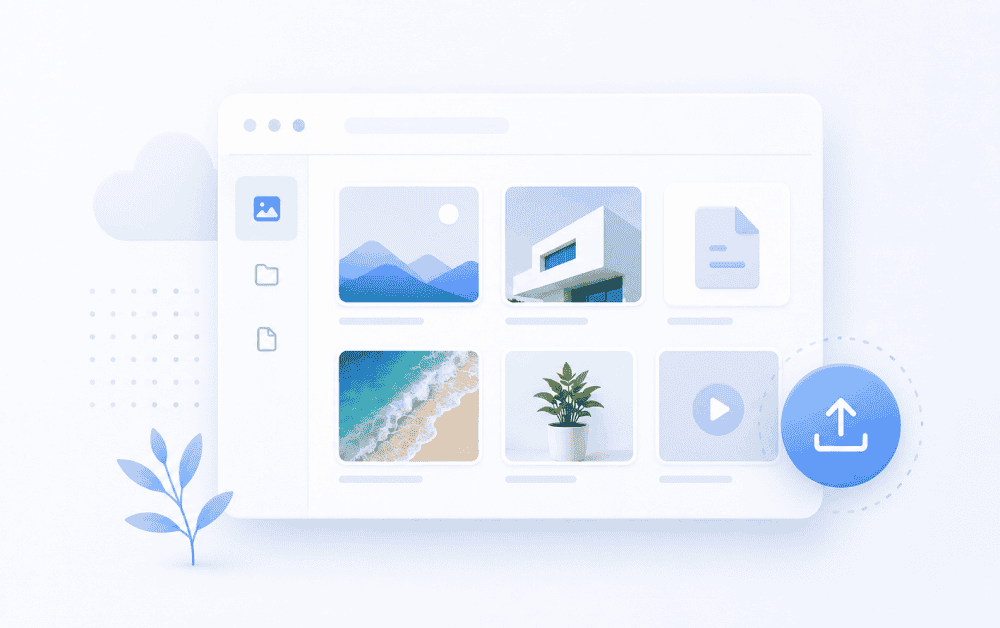
The Media Management page in the CMS is used to view, review, copy links, update file names, or delete images uploaded via the administration panel.
This page lists the media files used on your website or uploaded to the panel for inclusion in content, in a card structure. This allows you to easily track and manage previously uploaded images from a single location.
What is the purpose of the Media Management page?
Media Management , located in the Webayt panel, is the area where uploaded images are centrally listed. This page allows you to manage the images used on your website in a more organized way.
The following actions can generally be performed on the Media Management page:
- Listing uploaded media files
- Opening the new image upload popup
- Viewing visual details
- Copy the link to the media file.
- Updating the file name
- Delete unnecessary media files
How can I access the Media Management page?
To view your media files, you can follow this path in the administration panel:
Media Management
Clicking the Media Management link in the left-hand menu will open a page listing the media files uploaded through the panel.
How to List Media Files?
On the Media Management page, images are listed as cards. Each card displays a small preview of the image, along with information such as the file name, file size, and upload date.
This structure allows you to visually distinguish between images you've previously uploaded, making it easier to determine which file can be used for which content.
How to Upload a New Image?
Clicking the Upload button in the upper right corner of the Media Management page opens a popup for uploading new images.
This popup has the same structure as the quick image upload area used throughout the panel. For a detailed explanation of the image upload process, please refer to the guide "How to Upload Images in Panel Webayt" .
In short, clicking the Upload button opens a quick upload window. From this window, you can select an image from your computer and upload the file to the panel.
How to Select a Media File?
On the Media Management page, when you hover over or select an image, action buttons will appear. These buttons allow you to perform actions such as editing or deleting the image.
The selected media file is highlighted on the card, allowing you to see more clearly which image you are working on.
How to view media details?
To view the details of a media file, you can use the edit or details button located on the image.
The Media Details window that opens displays information such as a preview of the image, the file name, and the file link.
This screen generally contains the following information and functions:
- Visual Preview: Displays a small preview of the selected media file.
- File Name: Displays the name of the media file registered in the system.
- File Link: Displays a link to the image that can be used on the website.
- Copy Link: Used to copy the file link.
- Update: Used to save a file after making changes to the file name.
- Close: Closes the media details window.
How to Copy a Media Link?
If you want to use an image in content, custom HTML areas, or different sections of the page, you can copy the link to the media file.
To do this, simply click the Copy Link button in the media details window. The copied link can then be used in the content editor, templates, or necessary HTML fields.
How to Update a File Name?
You can edit the file name in the media details window. To change the file name, you need to update the relevant field and then click the Update button.
When naming files, it's recommended to use descriptive and understandable names. This helps images to be more easily distinguished, especially on sites with many media files.
Note: When updating the file name, if this image has been previously used in content, you may need to check the link in that content as well.
How to Delete a Media File?
Media files that are no longer in use can be deleted via the Media Management page.
To delete an image, you can click the delete button on the image. The system may ask for your confirmation before proceeding with the deletion.
If you click the "I Want to Delete" button in the confirmation window, the relevant media file will be removed from the system. You can use the "No" button to cancel the deletion process.
Before deleting an image, it's recommended to ensure it's not currently in use on an active page, in content, module, or template. If an image is deleted, it may no longer be displayed in that area.
What should be considered in media management?
Keeping media files organized makes website content management easier. This is especially important for sites with a large number of images; ensuring file names are understandable and regularly checking for unused images is crucial.
- Make sure to use descriptive file names for images.
- Please avoid uploading the same image unnecessarily repeatedly.
- Before deleting, check if the image is already being used on any page.
- You can copy the media link for images you will use in your content.
- For the new image upload process, you can use the "How to Upload Images in Panel Webayt" guide.
Summary
The Media Management page in Webayt CMS is where images uploaded via the panel are listed and managed. On this page, you can view media files, upload new images, review file details, copy links, update file names, or delete unnecessary images.
For details on how to upload a new image, please refer to the "How to Upload an Image in Panel Webayt" guide.
Similar Content That Might Interest You


Load More Content
How can we help you?
You can fill out the form below to contact our Webayt support team. Your request will be reviewed by our relevant team and you will be contacted as soon as possible.