
How to use the Logo Module?
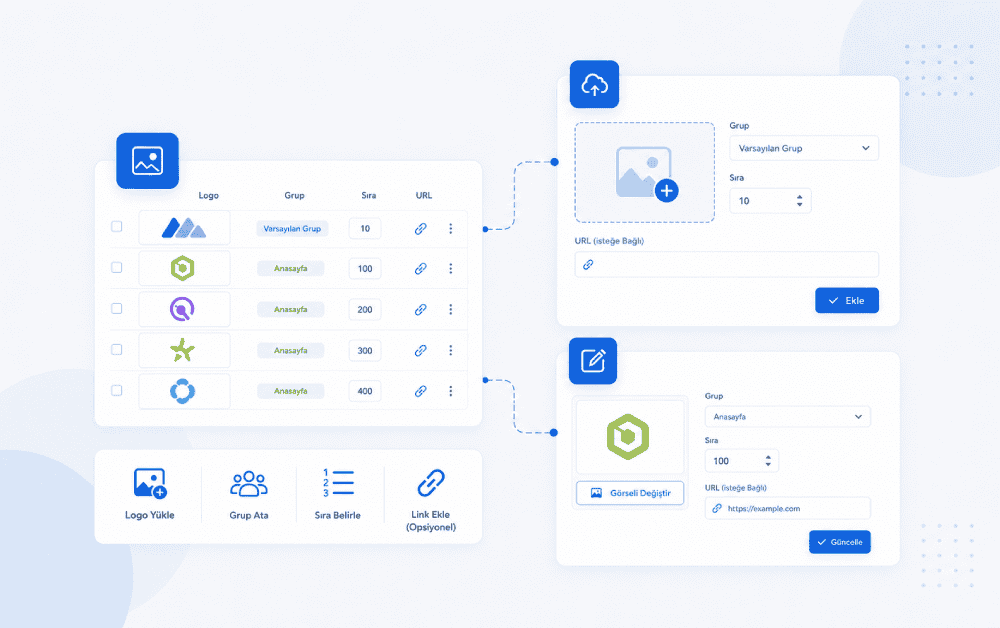
Webayt The Logo Module in the CMS is used to manage and display different logo images on your website in specific areas. Through this module, logo images for brands, references, business partners, customers, or similar entities can be added, edited, and arranged via the control panel.
In the Logo Module, you can define the image, navigation link, group selection, and order information for each logo. This allows you to group logos and display them neatly on the required pages.
What is the purpose of the Logo Module?
The Logo Module is used to create logo-based visual listing areas on your website. These areas can typically be used to display reference logos, brand logos, business partners, customer logos, or supported platforms.
Each logo registration can be managed individually through the panel. Logo images can be added, the link that will redirect when clicked can be specified, groups can be selected, and the display order can be adjusted.
How can I access the Logo Module page?
To access the Logo Module, go to the Modules section in the left-hand menu of the Webayt admin panel and enter the Logo Module page.
Modules → Logo Module
This page lists previously added logos. You can add new logos, edit existing logos, or delete them if necessary.
Logo Listing Screen
On the Logo Module main screen, added logos are displayed in a table. This list includes the logo image, URL information (if available), group information, sequence value, and action buttons.
The following actions can generally be performed on the listing screen:
- Viewing current logos
- Go to the new logo adding screen.
- Editing logos
- Removing logos
- Check logo order and group information.
This screen allows you to quickly check which logos have been added to the system and in what order they are displayed.
How to Add a New Logo?
The Add Logo tab is used to add a new logo. On this screen, you can specify the logo image, navigation link, group selection, and order information.
- Log in to the Webayt admin panel.
- Open the Modules section from the left-hand menu.
- Go to the Logo Module page.
- Click the Add Logo tab.
- Upload or select a logo image.
- If necessary, enter the redirect link in the URL field.
- If necessary, select the relevant group from the Group Selection area.
- Enter the display order of the logos in the order field.
- Save the logo by clicking the Add button.
Once the logo is saved, it becomes available for use in the relevant module area.
How to Add a Logo Image?
When creating a logo registration, the most important field is the Image field. The image file for the logo is uploaded or selected from this field.
Logo images should be clear, legible, and of the highest possible quality. This is especially important for horizontal logos; the image should not be cropped, should be readable, and should blend seamlessly with the background.
When uploading images, attention should be paid to file size and supported file types. Images that comply with the file rules specified in the panel should be used.
For detailed information on general image uploading procedures, you can review the "How to Upload Images in the Webayt Panel?" guide.
What is the purpose of the URL field?
The URL field is used to specify the link to which a visitor will be redirected when the logo is clicked.
For example, if you want a link to redirect to the relevant website or a page on your site when a partner, customer, brand, or reference logo is clicked, the link can be added to this field.
If the logo is not clickable, the URL field can be left blank.
What is the purpose of group selection?
Group Selection allows you to associate the logo with a specific group. This field can be used to categorize logos according to their intended use or to display logos belonging to a specific group within module management.
For example, if you only want to display logos belonging to a specific group on a page, you can select that group when adding or editing logos. For more general uses, the default group can be preferred.
For more detailed information about groups, you can review the How to Use Groups guide.
What is the purpose of the queue area?
The order field is used to specify the order in which the logos are displayed.
If multiple logos are added, their order value can affect their arrangement on the front end. Logos with lower order values may be displayed earlier depending on the theme structure.
To ensure logos appear organized, it's helpful to assign order values systematically. For example, lower order values can be used to display important logos higher up in the list.
How to Update the Logo?
To update an existing logo, you can click the Edit button next to the relevant entry on the logo listing screen.
On the logo update screen, you can edit the image, URL, group selection, and order fields. After making changes, click the Update button to update the record.
The logo update screen may also include a "Lists to Update" field. This field is used to specify which language lists to update in multilingual environments.
For more detailed information on this topic, you can review the guide "How to Use Update Lists?" .
Logo Removal Process
If a logo is no longer to be used, it can be deleted using the Delete button on the listing screen.
When a logo is deleted, the corresponding entry is removed from the logo list. If there is a possibility that the logo may be used again later, it is useful to check if it is really needed before deleting it.
How to Add the Logo Module to Pages?
Creating logo records in the Logo Module ensures that the logos are ready in the system. However, to display these logos on a page, the logo module may need to be used in the Module Management area of that page.
For detailed information on how to add modules to pages, you can review the "How to Add Modules to Pages?" guide.
What should be considered when using a logo?
Logo areas are typically used to display trustworthy visual elements such as brand, reference, or business partner. Therefore, it's important that logos look clear, high-quality, and consistent.
- Upload logo images in high quality and legible format.
- Use logo images with similar proportions whenever possible.
- Avoid logos with mismatched or low-quality backgrounds.
- If you're using a URL, make sure the link leads to the correct page.
- If group selection is used, make sure the correct group is selected.
- Plan the sequence values according to the front-end layout.
- After making the update, check how the page appears on the front end.
- Make sure you select the correct lists to update on multilingual websites.
Suggestions for Logo Images
In the Logo Module, image sizes and background structures are important for an organized display of images. Logos of different sizes or with different backgrounds may appear disorganized in the same space.
Therefore, before uploading logos, it is recommended that the images be prepared with similar proportions, have a clean background if possible, and contain no unnecessary spaces.
How logo images appear on the front end can vary depending on the theme and module placement used. Therefore, it's best to check the relevant page after adding the logos.
Summary
The Logo Module is used to manage logo images in the Webayt CMS. Through this module, you can define the logo image, navigation link, group selection, and order information.
Logo registrations can be used in areas such as brand, reference, customer, or business partner. To ensure logos appear neat and high-quality, attention should be paid to visual quality, group selection, order value, and link accuracy.
To display the logos on the relevant pages after they are created, you may need to use the logo module in the Module Management area of the page. It is recommended to check that the logos appear correctly on the front end after the update.
Similar Content That Might Interest You


Load More Content
How can we help you?
You can fill out the form below to contact our Webayt support team. Your request will be reviewed by our relevant team and you will be contacted as soon as possible.