
How to Use Menu Management?
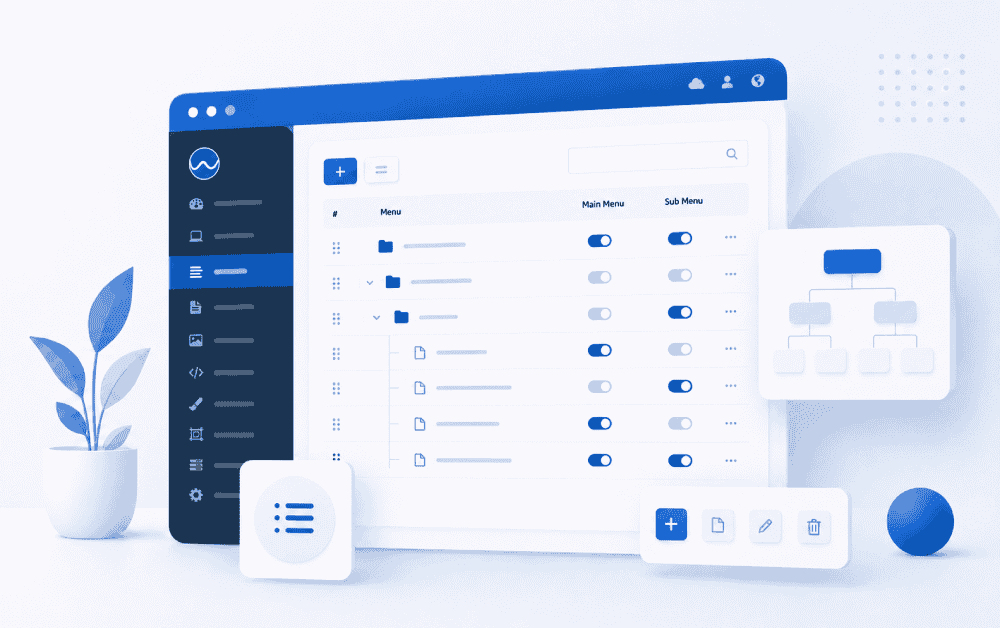
In the Webayt admin panel, Menu Management is used to manage the main menu and submenu links that will be displayed on your website. From this section, you can list your menus, add new menus, edit existing menus, or delete menus where appropriate.
Menu structure allows visitors to more easily navigate the pages on your website. Therefore, it's important that menu names are understandable, links are correct, and the menus are arranged in an organized manner.
What can be found on the Menu Management page?
The Menu Management page lists previously created menus in a table. This list displays the menu's name, URL, whether it's used as a main menu or submenu, and editing options.
The basic information included in the menu list is as follows:
- Menu Name: This is the title of the menu that will be displayed on the website.
- URL: The page address you will be redirected to when you click on the menu.
- Main Menu: Specifies whether the menu will appear in the main menu.
- Submenu: Specifies whether the menu can be used as a submenu.
- Edit: Used to update menu information.
- Delete: Used to remove relevant menu items.
Menu Addition Methods
Webayt Menus in a CMS can be created in two different ways:
- Menus can be added manually via the Add Menu tab on the Menu Management page.
- A menu can be created for a specific page via the menu selection area on the Information and Section Page creation or editing screen.
Although these two methods seem similar, they behave differently in terms of management and organization. Therefore, it is important to know which method was used to create the menu.
How to Add a Menu via Menu Management?
Menus added via Menu Management are independent menu links. Menus created using this method can later be edited or deleted from the Menu Management page.
To add a new menu item, you can follow these steps:
- From the left-hand menu of the panel, access the Menu Management area.
- Click the Add Menu tab.
- In the Menu Name field, enter the menu name that will appear on the website.
- Enter the link that the menu will redirect to in the Redirection Link (URL) field.
- If necessary, add the icon class to be used in the Icon field.
- In the order field, enter the position in which the menu item will be displayed.
- If you want to create a submenu, select the relevant top menu from the Top Menu Selection area.
- In the Menu Selection area, determine whether the menu appears in the main menu or a submenu.
- Save the menu by clicking the Add button.
Menu Name Field
The Menu Name is the link that visitors will see on the website. This field should be short, clear, and representative of the page's content.
Example menu names:
 About Us
Blog
Help Center
Communication
Packages
Redirect Link (URL) Field
The redirect link (URL) determines which address a visitor will be directed to when they click on a menu item.
If the menu redirects to a page within the site, the URL of that page can be used. If redirecting to an external link, the full link address can be entered.
Example URL usage:
 about us
blog
help-center
https://example-site.com
In menus added manually via Menu Management, this field can be edited later.
Icon Area
The icon area can be used to display an icon next to the menu link. The information in the panel shows Font Awesome icon classes as an example of usage.
Example:
fa fa-homeIcon usage is not mandatory. It can be left blank depending on the design structure.
Row Area
The order field is used to determine the order in which the menu items are displayed in the list and on the website.
Menus with lower sequence numbers are generally displayed earlier. To ensure a more organized menu structure, it is recommended to assign sequence numbers in a planned manner.
What is Top Menu Selection?
The Top Menu Selection option is used to create a drop-down menu structure. If you want one menu to appear under another, you can select the relevant top menu from this area.
For example, if you want to display submenus such as "Starter Package," "Business Package," and "Enterprise Package" under the "Packages" main menu, you can select "Packages" as the top menu when creating these submenus.
Menu Selection Area
The Menu Selection area is used to determine whether the menu will be displayed in the main menu or a submenu.
From here, the relevant menu type can be selected to determine the menu's location on the website.
Creating a Menu from the Information and Section Page
Webayt In a CMS, menus are not only created from the Menu Management page. When creating or editing Information and Section Pages, it is also possible to make those pages appear in the menu.
The Menu Selection area on the Information and Section Page screen allows you to determine whether the page appears in the main menu or a submenu.
The menu created using this method is directly linked to the relevant information and section page. Therefore, the redirect address automatically becomes the URL value of that page.
The Difference Between Menus Added from the Information and Section Pages
Menus created via the Information and Section Page function differently than manually added menus via Menu Management, as they are directly linked to the respective page.
Here are some important points to consider regarding these menus:
- The menu is created based on the relevant information and section page.
- The menu's redirection link automatically becomes the URL of the page it links to.
- This redirect link cannot be changed from the Menu Management editing screen.
- The main menu or submenu status of the menu is managed from the editing screen of the relevant information and section page.
- Menus created in this way cannot be deleted from the Menu Management listing page.
How to remove the menu added from the Information and Section page?
To remove a menu created via the Information and Section Page, the Delete operation in the Menu Management list cannot be used.
To remove this menu, please follow these steps:
- From the left-hand menu of the panel, go to the Pages section.
- Open the Information and Section Pages screen.
- Locate the relevant page in the menu.
- Click the Edit button.
- Go to the Menu Selection area on the page layout screen.
- Uncheck the selected menu item or change the required menu selection.
- Save the changes by clicking the Update button.
After this process, the relevant page will no longer appear in the menu.
Editing Menus Added via Menu Management
Menus created using the Add Menu tab on the Menu Management page can also be edited from the Menu Management screen.
The following fields can be updated in the editing screen:
- Menu name
- Redirect link
- Icon
- Order
- Top menu selection
- Menu selection
After making the necessary changes, you can save the menu information by clicking the Update button.
Menu Deletion Process
Menus added manually via Menu Management can be removed using the Delete button on the Menu Management listing screen.
However, if a menu was created via an Information and Section Page, it cannot be deleted directly from the list screen. In such a case, to remove the menu, its selection must be deselected from the editing screen of the relevant information and section page.
What should be considered when creating a menu?
To ensure the menu structure is organized and easy to understand, the following points should be considered:
- Write menu names briefly and clearly.
- Try to group similar content under the same menu category.
- When creating submenus, make sure you select the correct top menu.
- Arrange the menus according to the pages users will need most.
- Check that the redirect link is entered correctly in the manual menus.
- When adding menus from the Information and Sections page, remember that the URL comes from the linked page.
The Difference Between Menu Management and Information and Section Page Menus
Summary
Webayt Menus can be created in a CMS in two different ways. The first method is to use the Add Menu tab on the Menu Management page. Menus created using this method can be edited and deleted via Menu Management.
The second method is to use the menu selection area on the Information and Section Page creation or editing screen. Menus created in this way are directly linked to the relevant page. Therefore, URL and menu selection information is managed from the editing screen of the relevant page.
Knowing which menus are created manually and which are linked to pages when structuring the menu allows you to properly manage editing, deleting, and redirection operations.
Similar Content That Might Interest You


Load More Content
How can we help you?
You can fill out the form below to contact our Webayt support team. Your request will be reviewed by our relevant team and you will be contacted as soon as possible.